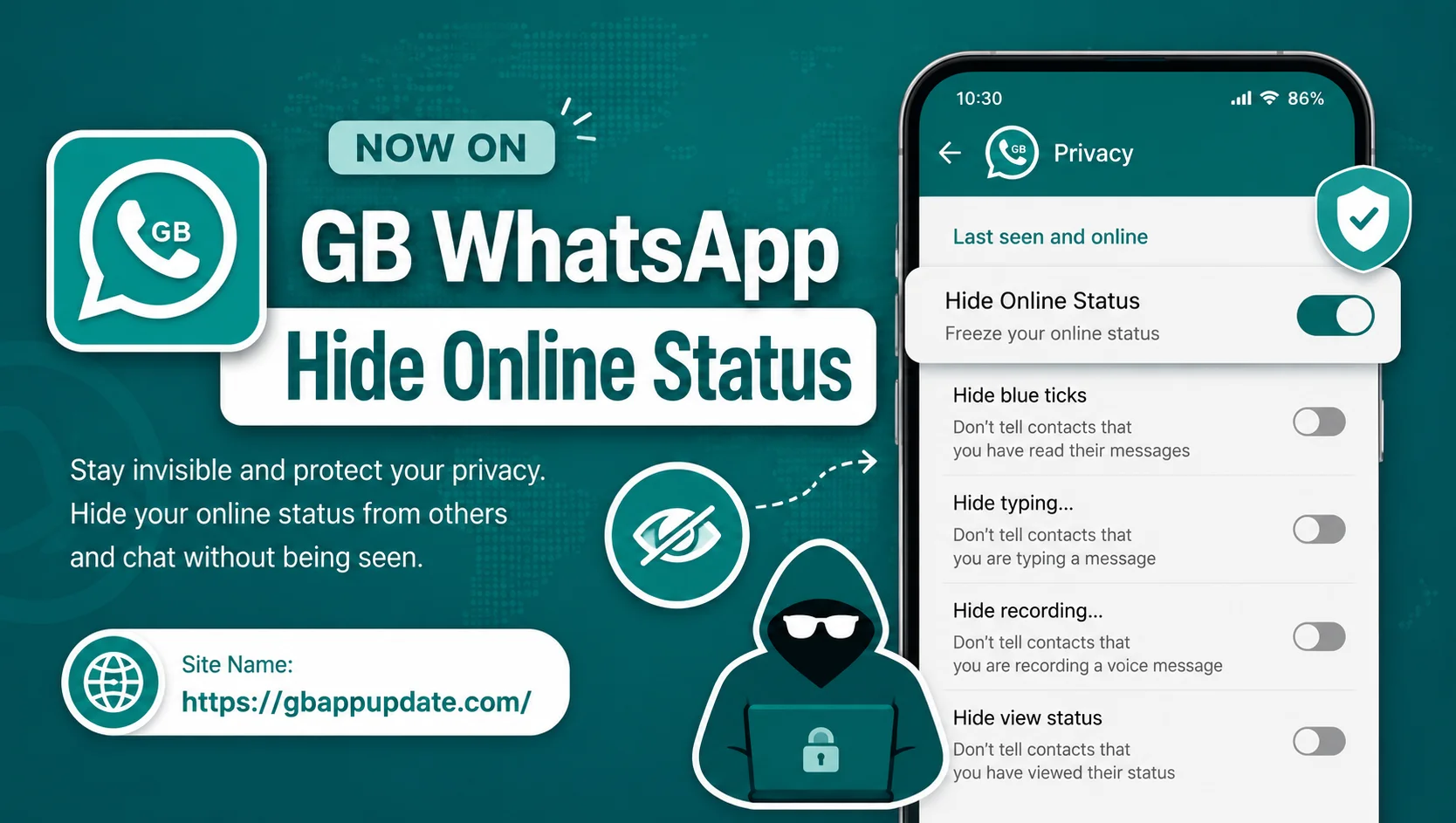
There are moments when you do not want anyone to know you are online. Maybe you are avoiding an awkward conversation, taking a break from chatty friends, or simply enjoying some quiet time. The problem is that WhatsApp makes it really obvious when you are active. The little green dot, the last seen timestamp, the typing indicator. They all give away your presence. That is why GB WhatsApp hide online status has become one of the most searched features in 2026.
Let us walk you through how this feature works, how to set it up, and some smart ways to stay invisible without losing your chat access.
Why Hiding Online Status Matters
Online status is more revealing than most people think. It tells the other person that you are actively using the app, you have your phone in hand, and you are choosing not to reply. That can create pressure, awkwardness, or even conflict.
In 2026, digital boundaries are more important than ever. People want the freedom to use their messaging app without feeling watched. Hiding your online status gives you that freedom. You can check messages, reply when you want, and stay invisible from the rest of the world.
What GB WhatsApp Offers for Online Status Privacy
GB WhatsApp does not just hide your online status. It gives you a full set of tools to control how you appear to others. Let us look at the main options.
| Feature | What It Does |
|---|---|
| Hide online status | No one sees you as online |
| Freeze last seen | Keeps your last seen at a fixed time |
| Hide typing indicator | Others do not see when you are typing |
| Hide recording status | Hides the microphone icon when recording voice notes |
| Hide second tick | Hides the message delivered indicator |
| Hide blue tick | Hides the message read indicator |
| Custom last seen | Set a fake last seen time manually |
| Hide view status | View statuses without the owner knowing |
This is not just about one feature. It is a complete privacy toolkit that lets you control every digital signal you give off inside the app.
How to Hide Online Status in GB WhatsApp
Setting it up is straightforward. Follow these simple steps.
Step 1: Open GB Settings
Launch GB WhatsApp and tap the three dot menu in the top right corner. Select GB Settings or Privacy and Security.
Step 2: Go to Privacy Section
Find the privacy or online status section in the menu. In most versions, the option is right at the top.
Step 3: Enable Hide Online Status
Toggle the switch next to Hide Online Status. The change takes effect instantly.
Step 4: Customize Other Indicators
While you are there, enable other privacy options like hide typing, hide recording, and hide blue ticks for full invisibility.
Step 5: Restart the App
Some users prefer to restart GB WhatsApp once after making changes to make sure all settings apply correctly.
What Happens When You Hide Your Online Status
Let us be clear about what changes and what does not.
What Changes
- Your profile will not show the online dot
- Other people will see your last seen at the last time you opened the app
- The typing indicator will not show when you are replying
- The recording icon will not appear when you send voice notes
What Does Not Change
- You can still send and receive messages
- You can still make and receive calls
- You can still see other people’s status updates
- You can still use all other features of the app
In simple words, you stay active in the app but invisible to everyone else.
Advanced Privacy Settings Worth Enabling
Hiding your online status is just the beginning. GB WhatsApp gives you a full privacy suite. Here are the other features you should consider turning on.
Freeze Last Seen
This is a powerful feature. It locks your last seen at a specific time. For example, you can set it to yesterday at 3 PM. Even if you open the app right now, your contacts will still see that old timestamp. It is the ultimate way to confuse anyone trying to track your activity.
Anti Revoke Messages
Sometimes people delete messages after sending them. With anti revoke, you can still see those messages. It is a great tool for keeping records of important conversations.
Hide View Status
When you view someone’s status update, they can usually see that you viewed it. GB WhatsApp lets you view statuses without leaving a trace. Perfect for staying updated without being noticed.
DND Mode
Do Not Disturb mode cuts off your internet connection for GB WhatsApp only. You can browse the web, use other apps, and still not receive any WhatsApp notifications. It is a great way to disconnect without turning on airplane mode.
Common Problems and Fixes
Sometimes the hide online status feature does not behave the way you want. Here is how to fix the most common issues.
| Problem | Quick Fix |
|---|---|
| Still showing online | Make sure you enabled the feature in GB Settings |
| Friends can see your last seen | Enable freeze last seen in privacy settings |
| Typing indicator still showing | Toggle off the hide typing option |
| App not saving settings | Clear app cache and retry |
| Feature missing in menu | Update to the latest GB WhatsApp version |
| Settings reset after restart | Make sure to save changes before closing the app |
Smart Tips for Using This Feature
Hiding your online status is useful, but it works best when used wisely. Here are some smart tips.
Be Honest with Close Friends
If you have a partner, family, or close friend who relies on knowing you are available, be honest about using privacy settings. Hiding your status from everyone can create trust issues.
Use It During Focused Work
Turn on hide online status when you need to focus. It removes the temptation to reply to every message and keeps you productive.
Pair with Chat Lock
Combine hide online status with chat lock for the ultimate privacy setup. No one knows you are online, and no one can access your private chats.
Avoid Overuse
If you hide your online status all the time, people will notice that you are never online. Use the feature when you really need it.
Why This Feature Stands Out in 2026
In 2026, online status is more than a small green dot. It is a social signal that people read and interpret. By hiding it, you take back control of your time and attention. GB WhatsApp makes this easy, flexible, and customizable. Few apps give you this level of granular control over your visibility.
Final Thoughts
GB WhatsApp for hide online status is a small feature with a big impact. It gives you the freedom to use your messaging app on your own terms without feeling watched or pressured. Just remember to keep the app updated, use the feature responsibly, and respect the people you chat with. Privacy is a right, and GB WhatsApp makes it easier to enjoy.
Frequently Asked Questions
Can I hide my online status for specific contacts only? In the current version of GB WhatsApp, you either hide online status for everyone or no one. Contact based control is limited.
Will I still be able to use WhatsApp when hidden? Yes, all features work normally. You just appear offline to other users.
Can people tell I am using hide online status? No, the app does not notify anyone. They will simply see you as offline.
Does this feature also hide my last seen? Hiding online status does not automatically hide last seen. You need to enable freeze last seen separately for that.
Is the hide online status feature safe? Yes, the feature is built into the app. Just make sure you are using a genuine version of GB WhatsApp to avoid security issues.