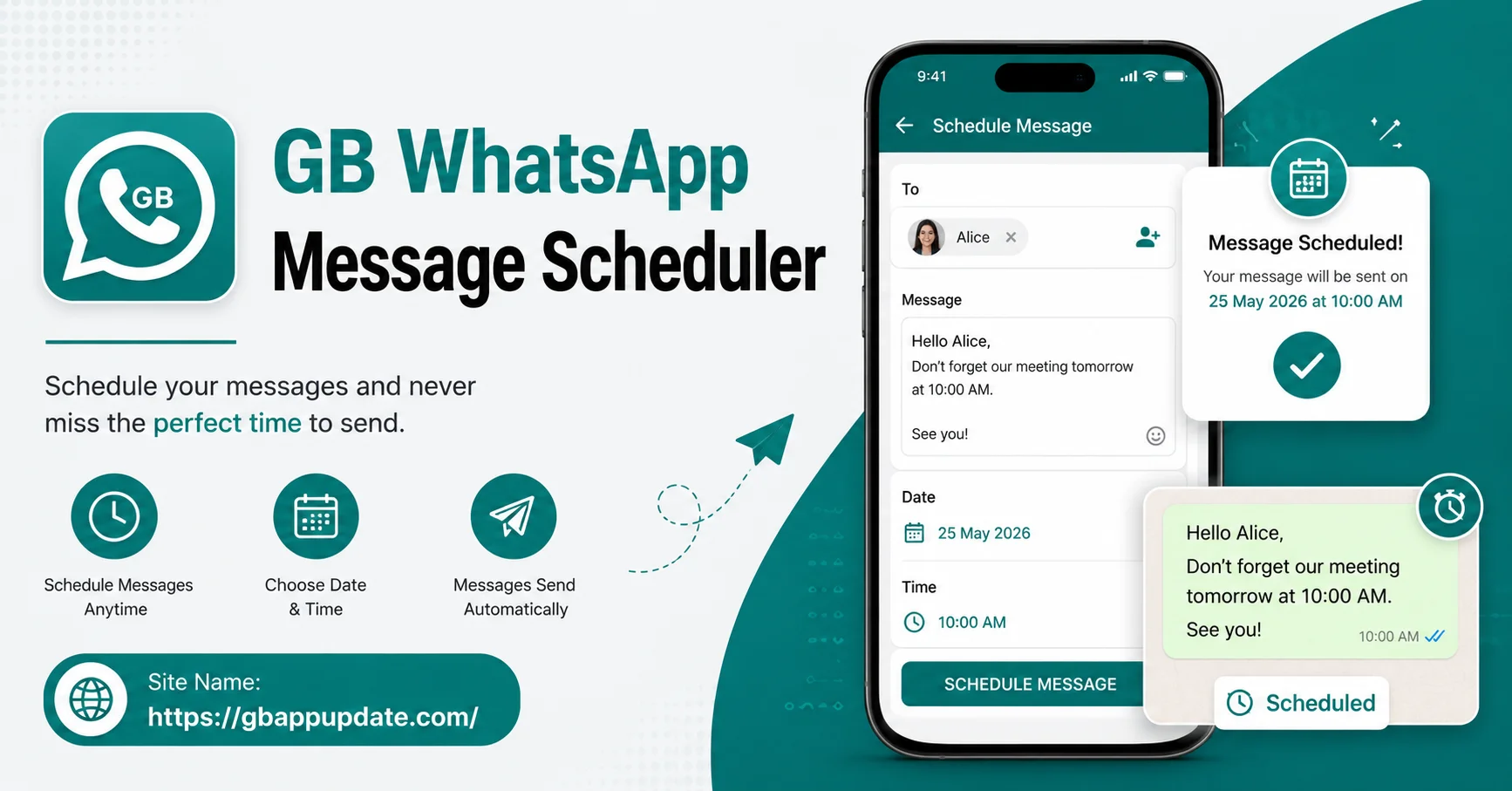
Have you ever typed out a message late at night, looked at the time, and thought, I wish I could send this in the morning without waking up early? That is exactly where message scheduling becomes a lifesaver. GB WhatsApp has had this feature for a while, and in 2026 it works smoother than ever. Whether you want to wish someone a happy birthday at midnight or send a work update at a specific time, GB WhatsApp has you covered.
Let us walk you through the full process of scheduling messages in GB WhatsApp and explore some smart ways to use this feature.
Why Schedule Messages in GB WhatsApp
Scheduling messages is not just a fancy trick. It is a real productivity tool. Here is why people love using it.
Everyday Use Cases
| Use Case | Benefit |
|---|---|
| Birthday wishes at midnight | Never miss a special moment |
| Work reminders | Stay on top of tasks |
| Marketing messages | Send promos at the right time |
| Greetings for festivals | Reach people on time |
| Follow up messages | Stay professional with clients |
| Personal reminders | Never forget important chats |
The best part is that GB WhatsApp handles scheduling locally on your device, so the message goes out at the right time even if you close the app or your screen is off.
How to Schedule Messages in GB WhatsApp
Scheduling a message in GB WhatsApp takes only a few taps. Follow these steps.
Step 1: Open the Chat
Open the conversation where you want to send the scheduled message. This can be an individual chat or a group chat.
Step 2: Type Your Message
Write the message you want to schedule. You can add text, emojis, and even attachments depending on the version you are using.
Step 3: Find the Schedule Option
Look for the clock or send icon in the message input area. In most versions of GB WhatsApp, you will see a small clock icon on the right side of the send button. Long press the send button or tap the clock icon to open the schedule menu.
Step 4: Set the Date and Time
A pop up will appear with options to pick the date and time. Select when you want the message to be sent. You can choose any future date and time.
Step 5: Confirm the Schedule
Tap OK or Schedule. The message is now saved and will be sent automatically at the time you selected.
Step 6: Manage Scheduled Messages
If you want to edit, reschedule, or delete a scheduled message, go to GB Settings and look for the Scheduled Messages section. You will see a list of all pending messages with options to modify them.
Advanced Scheduling Tips
Once you know the basics, you can take scheduling to the next level with these tips.
Schedule Recurring Messages
Some versions of GB WhatsApp allow recurring messages. You can set a message to go out every day, every week, or every month. This is perfect for daily reminders, weekly updates, and monthly check ins.
Schedule Messages in Groups
Group scheduling is a huge plus for community managers and team leaders. You can prepare a series of updates and schedule them across the week to keep your group active and informed.
Combine with Auto Reply
Pair scheduled messages with the auto reply feature in GB WhatsApp. While your scheduled message goes out, your auto reply handles incoming queries. It is a powerful combo for small business owners.
Use Schedule for Marketing Campaigns
If you run a small business, scheduling helps you send promotional messages, offers, and updates at peak hours when your customers are most active. You do not have to stay up late or wake up early to hit the right time.
Common Issues and Fixes
Sometimes scheduled messages do not behave the way you expect. Here are some common problems and how to solve them.
| Problem | Possible Fix |
|---|---|
| Message did not send | Check if phone was off or had no internet |
| Wrong time used | Sync your phone clock with network time |
| Schedule disappeared | Update GB WhatsApp to the latest version |
| Cannot find schedule option | Enable it from GB Settings or Privacy menu |
| Message sent to wrong chat | Double check the recipient before confirming |
| App was force closed | Reopen GB WhatsApp and check the scheduled list |
If the issue keeps happening, the safest fix is to update to the latest version of GB WhatsApp. Mod developers fix scheduling bugs in almost every update.
Scheduling vs Third Party Apps
Some users try to use third party automation apps to schedule WhatsApp messages. That is not necessary with GB WhatsApp. The built in scheduler works fine, and using third party apps adds extra risk. Stick with the in app feature for the best experience.
Final Thoughts
Scheduling messages in GB WhatsApp is one of the most useful features for anyone who wants more control over their conversations. It is simple to set up, works reliably, and can save you time in both personal and professional life. Just remember to keep the app updated, keep your phone on, and make sure you have a stable internet connection at the scheduled time.
Frequently Asked Questions
Can I schedule a message to a specific time in GB WhatsApp? Yes, you can pick any future date and time. The message will be sent automatically at that exact moment.
Does GB WhatsApp need to be open for scheduled messages to send? The app can run in the background, but your phone should be on with an active internet connection for the message to go out.
Can I edit a scheduled message after setting it? Yes, you can go to the scheduled messages list in GB Settings and edit, reschedule, or delete any pending message.
Can I schedule messages in WhatsApp groups? Yes, GB WhatsApp supports message scheduling in both individual chats and group chats.
Will the recipient know the message was scheduled? No, the recipient will see the message as a normal message with the timestamp showing the time it was sent